
For macOS
Quwire.
Play your Mac’s sound on two AirPods, headphones and speakers at once.
Unlike iPhone and iPad, a Mac has no Share Audio button. Watch a movie on one MacBook with two pairs of AirPods, or add a speaker to your headphones. Turn Quwire off, and your sound comes back.
Coming to the Mac App Store
Use cases
Multiple audio outputs at once.
One Mac, the same sound on every output you pick. These are the setups people ask about most.
-
A movie for two
Two AirPods, or any two Bluetooth headphones.
Both pairs play the same sound from one MacBook, each at its own volume.
-
You and the room
Headphones and speakers together.
AirPods or other Bluetooth headphones for you, the Mac’s speakers or a Bluetooth speaker for the room.
-
A party
Several speakers at once.
Bluetooth speakers with the built-in speakers or wired ones (USB, HDMI or DisplayPort). macOS plays at most 3 Bluetooth devices at a time; wired outputs don’t count toward this limit.
-
The living room
An HDMI or DisplayPort TV and your headphones.
The TV plays for the room while you listen on headphones. AirPlay TVs can’t join yet.
The Quwire window
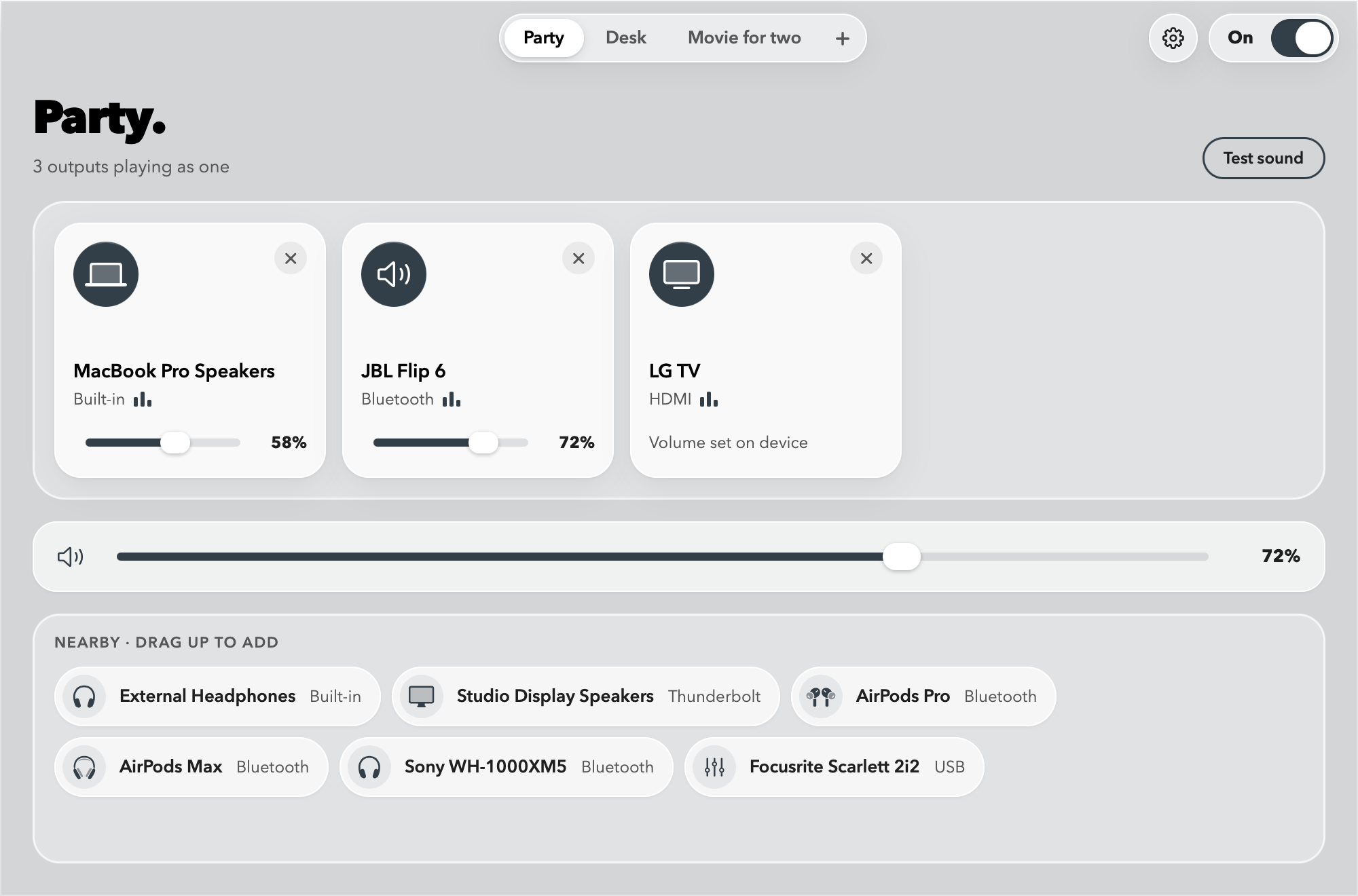
Build a mix. Play it everywhere.
Drag outputs into the mix, give each one its own volume, and keep a mix for every setup: the desk, the party, a movie for two.
Features
Speakers and headphones, playing as one.
-
Many outputs at once.
Your Mac’s speakers, a pair of headphones, a Bluetooth speaker and your display all play the same sound, together.
-
Works with what you have.
AirPods, Beats, Sony, Bose, JBL and other Bluetooth headphones and speakers (up to 3 at a time, a macOS limit), USB DACs, HDMI and DisplayPort TVs and monitors, and the built-in speakers, even at different sample rates.
-
One volume slider, and one per output.
Set each output’s volume in the Quwire window, and the whole mix with one slider or your own shortcuts. A TV whose volume macOS can’t set keeps its own remote. The keyboard’s volume keys can’t change a combined output; that’s a macOS limit.
-
Set up for you.
Quwire picks the output that keeps time and turns on drift correction for the others: settings a Multi-Output Device leaves to you.
-
Your sound comes back.
Turn Quwire off or quit it, and your Mac returns to the output, input and volumes it had before.
-
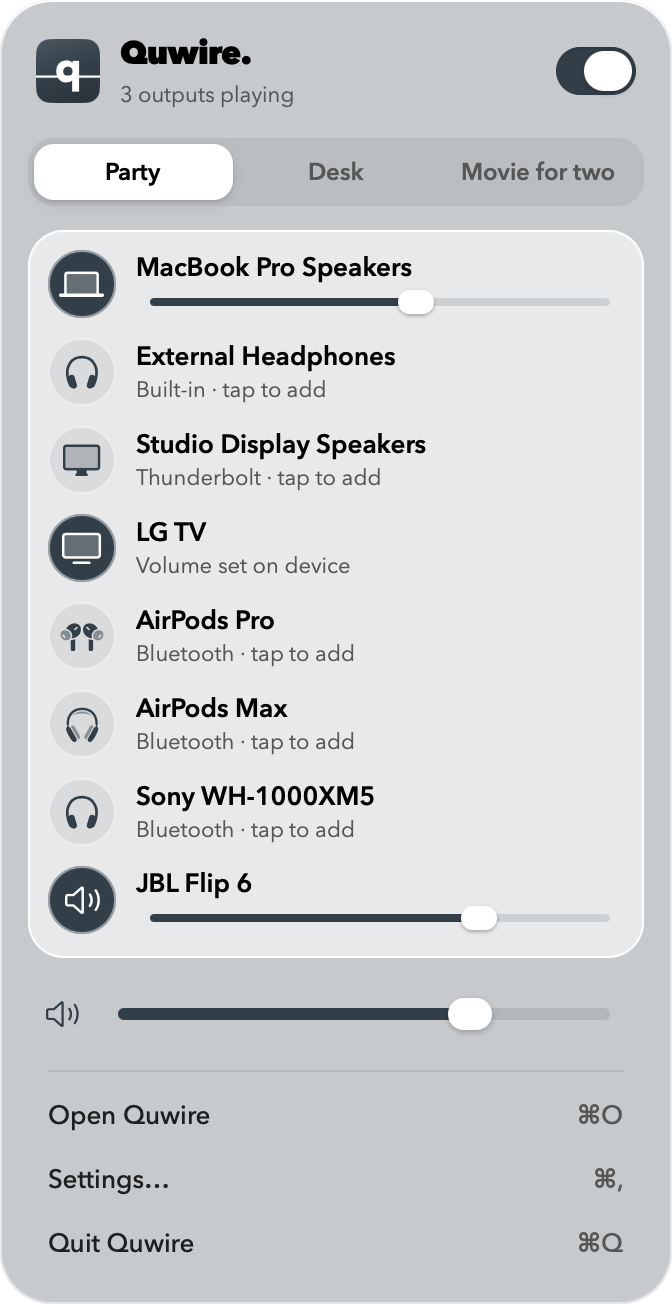
Lives in the menu bar.
Switch mixes in one click, or turn Quwire on and off from any app with Option-Command-T.
How it works
Three steps. Then press play.
-
Connect your outputs.
Pair your headphones and plug in your speakers the way you always do.
-
Pick them in the menu bar.
Click Quwire’s q in the menu bar, then click each output you want in the mix.
-
Turn Quwire on.
Apps that use your Mac’s sound output now play on all of them. Turn it off, and your Mac goes back to the output it used before.
The fine print
Good to know before you start.
- Up to 3 Bluetooth audio devices play at once, a macOS limit. Wired outputs don’t count toward this limit.
- No AirPlay yet: AirPlay speakers, HomePod and AirPlay TVs don’t appear in Quwire for now.
- The keyboard’s volume keys can’t change a combined output. Use Quwire’s slider or your own shortcuts.
- Bluetooth plays a moment late, so Bluetooth and wired outputs in one room can sound like an echo.
- Free to try in the TestFlight beta. On the Mac App Store: a free trial, then a one-time price, no subscription.
Compared with the built-in way
Simpler than a Multi-Output Device.
macOS’s own way to play on several outputs is a Multi-Output Device that you build in Audio MIDI Setup. Here’s how the two compare, limits included.
| Quwire | Multi-Output Device (Audio MIDI Setup) | |
|---|---|---|
| Setting up | Click outputs in the menu bar, then turn Quwire on | Build it in Audio MIDI Setup, then pick it as your Mac’s output |
| Volume | A master slider, shortcuts and a volume per output, where macOS can set it | Set each device’s volume in Audio MIDI Setup |
| Keyboard volume keys | Don’t change it (a macOS limit) | Don’t change it |
| Primary device and drift correction | Chosen for you | Set by hand |
| Outputs at different sample rates | Handled | Set rates and drift correction by hand; users report crackling when rates differ |
| Several setups | A mix for each setup, one click to switch | One device per combination |
| Going back | Turn it off: output, input, volumes and sample rates come back | Switch the output back, and remove the device by hand |
Guides
With Quwire, or without it.
Step-by-step guides that start with the way built into macOS and its limits, then show the Quwire way, limits included. Or browse all Mac audio guides.
- How to connect two AirPods to one Mac: two pairs, or any two Bluetooth headphones, and what to do when the second pair won’t connect.
- Headphones and speakers at the same time: AirPods with a speaker, or an HDMI or DisplayPort TV with headphones, and why one room can sound out of sync.
- Multiple audio outputs with a Multi-Output Device: create one in Audio MIDI Setup, fix what goes wrong, and remove it again.
- Why a Multi-Output Device has no volume control: set each output’s volume, and what Quwire’s sliders and shortcuts add.
Try Quwire in the beta.
Quwire is in beta on TestFlight. Ask for an invite, and tell me how it sounds.
Join the betamacOS 15 or later · Apple silicon, and Intel Macs up to macOS 26